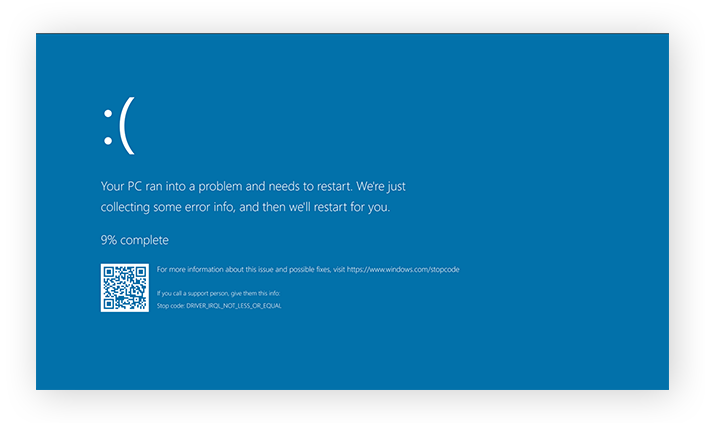
Imagine you’re in the middle of an important task on your computer, and suddenly, everything freezes. Your screen turns an ominous shade of blue, and cryptic white text appears.
You’ve just encountered the infamous Windows Blue Screen of Death (BSOD). If you’ve experienced this, you’re not alone, and it’s not as scary as it seems. It’s frustrating, yes, but don’t worry. In this guide, you’ll learn step-by-step how to fix this issue and get back to your work smoothly.
By understanding the root causes and solutions, you can regain control over your computer and prevent future disruptions. Ready to solve the mystery behind this blue screen and keep your digital life running seamlessly? Let’s dive in and fix it together.
Common Causes
The Blue Screen of Death can be scary. It often comes from hardware issues. A bad memory stick can cause it. Faulty drivers can also lead to this problem. Software bugs sometimes make the screen appear. Virus attacks are a big reason too.
Overheating of the computer is dangerous. It can make the screen blue. Power supply problems also contribute. Corrupted files can cause the system to crash. Hard disk failures may make the blue screen appear.
Updates are important. Without them, the system can fail. Incompatible software might trigger the blue screen. Incorrect settings can also be a problem. Device conflicts sometimes cause issues.
Initial Troubleshooting
Start by restarting your computer. This can fix many issues. Check for any new hardware or software that you added. Remove them if possible. Sometimes, updates cause problems. Update your drivers to the latest versions. This can solve many blue screen errors.
Scan your computer for viruses. Malware can cause blue screen errors too. Use a good antivirus program. Check your computer’s temperature. Overheating can lead to problems. Make sure fans are working well.
Run Windows Memory Diagnostic Tool. This checks for memory issues. Make sure your computer has enough free space. Low disk space can cause errors. Use the built-in tools to clean up unnecessary files.
Safe Mode Boot
Safe Mode is a way to start your computer. It uses only basic files and drivers. This helps in fixing problems like the Blue Screen of Death. To start in Safe Mode, first turn off your computer. Next, turn it on and press the F8 key. Keep pressing until you see the Advanced Boot Options screen. Choose “Safe Mode” from the list. Your computer will start in Safe Mode. This mode is helpful for fixing many computer problems. It lets you uninstall bad software or drivers.
If your computer runs fine in Safe Mode, a program might be the problem. You can remove it to fix your computer. Always remember to restart your computer after changes. This ensures changes take effect. Safe Mode is a good first step for fixing computer issues.
Driver Updates
Keeping drivers up to date is important. Windows can do this automatically. It finds and installs the latest drivers. This process is quick and easy. Your computer stays safe and runs smoothly. It checks for updates regularly. You do not need to worry about it. Just make sure automatic updates are turned on.
Sometimes, drivers need to be installed manually. You can download them from the manufacturer’s website. Follow the instructions on the site. Make sure you pick the right driver version. It must match your computer’s model. After downloading, run the file to install it. Restart your computer after installation. This helps the new driver work well.
System Restore
Sometimes, computers get sick. They show the Blue Screen of Death. This can be scary. But, there is a way to help. It’s called System Restore. This tool can fix many problems. It takes your computer back in time. Back to when it worked well.
Use System Restore carefully. It does not delete files. But it changes settings. First, find the tool in your computer. Open the Start menu. Type “System Restore”. Click on it. Follow the steps. Choose a date when your computer was happy.
If it works, your computer will feel better. Remember, this is like a magic trick. But sometimes magic needs help. If the problem stays, ask a computer expert. They can help you further.
Check For Malware
Malware can cause the Blue Screen of Death. It’s important to scan your computer. Use a good antivirus program. Run a full scan. Detect and remove any malware. This helps to keep your system safe. Keep your antivirus updated. It protects against new threats.
Be careful with downloads. Some files might have malware. Always download from trusted sites. Avoid clicking unknown links. These can infect your system.
Check your browser settings. Ensure safety features are on. This blocks harmful sites. Regular checks keep your computer healthy. A clean system runs smoothly.
Memory Diagnostics
Windows Blue Screen can be scary. Memory issues often cause it. Running a Memory Diagnostic helps find problems. First, close all open programs. Save your work. Next, press the Windows key. Type “Windows Memory Diagnostic”. Click the tool. Choose “Restart now”. Your computer will reboot. The test starts. It checks your RAM. Watch the screen for errors. These errors mean faulty memory. If errors show up, think about replacing your RAM. Clean your RAM slots too. Dust can cause problems. Use compressed air. Be gentle. Reinsert the RAM. Check connections. This might solve the issue. Always back up your data. Safety is key. Memory checks help keep your computer healthy.

Disk Check
Running a disk check can help fix the blue screen error. It looks for errors on your computer’s hard drive. Errors on the disk can cause the blue screen.
To start, open the Command Prompt. Then type “chkdsk /f” and press Enter. This command will scan for disk errors. It might take some time. Be patient while it works.
The computer may ask to restart. If it does, restart your computer. A disk check will run during the restart. Once completed, it might solve the blue screen problem. Disk checks are helpful and can prevent future issues.
Windows Updates
Windows updates help keep your computer safe. They fix bugs and glitches. It’s important to install updates often. Updates can stop the Blue Screen of Death. This screen shows when something is wrong. Updating can solve many problems. It also improves your system’s health. Go to your settings to check for updates. Click on Update & Security. Then, choose Check for updates. This will show you if updates are ready. Follow the steps to install them. Restart your computer if needed. This helps changes take effect. Always back up important files before updating. This keeps your data safe. Updates can take some time. Be patient and wait for them to finish.
Hardware Issues
Hardware problems can cause the blue screen. Check if your computer is overheating. Dust can block air vents. Clean your computer to keep it cool. Also, check your RAM. Faulty RAM can lead to crashes. You can use a memory test tool. This will help find problems. Ensure all cables are connected properly. Loose cables can cause errors. If you have new hardware, it might be the problem. Remove it and see if the blue screen appears.
Another thing to check is your hard drive. Use a disk check tool. This tool will find and fix errors. Updating your device drivers is also important. Old drivers can cause issues. Visit the manufacturer’s website for updates. Keep your system up to date for better performance.
Bios Settings
The BIOS controls your computer’s basic hardware settings. It starts the system and checks for errors. Wrong settings can lead to system failures.
Press the F2 or Delete key during startup. This opens the BIOS menu. Every computer might have different keys.
Set BIOS to default settings to fix errors. Default settings are safe and stable. Always save changes before exiting.
Advanced users can adjust RAM or CPU settings. Changing these may help or cause problems. Make sure you know what you are doing.
After changing settings, find the Exit option. Save changes and restart the computer. Check if the blue screen error is gone.
Reinstall Windows
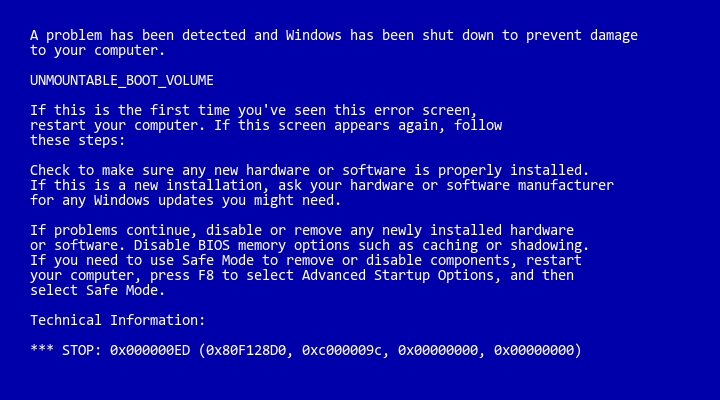
Reinstalling Windows might fix the blue screen error. First, save important files. You will lose them if not saved. Use a USB or external drive for this. Backup your files to keep them safe. Next, find your Windows installation media. It could be a DVD or USB. You might need to download it from Microsoft’s website. Follow the steps given by Microsoft. Insert the media into your computer. Restart your computer. Press the key shown to boot from the media. This starts the installation process. Follow the on-screen instructions. Choose the option to reinstall Windows. Do not choose the upgrade option. This might not fix the problem. Reinstallation will take some time. Be patient. Once done, your computer should work well again.

Frequently Asked Questions
What Causes The Blue Screen Of Death?
The Blue Screen of Death (BSOD) is caused by critical system errors. These errors can stem from hardware issues, driver conflicts, or software bugs. It typically indicates that Windows has encountered a problem it cannot recover from, requiring a restart to prevent damage.
How Can I Fix Windows Bsod Quickly?
To quickly fix a BSOD, restart your computer in Safe Mode. Check for driver updates and run hardware diagnostics. Use Windows Update to ensure your system is current. Consider uninstalling recent software that might conflict with system stability.
Can Outdated Drivers Lead To Bsod?
Yes, outdated drivers can lead to BSOD errors. They may not be compatible with the latest Windows updates. Ensure all drivers are updated regularly. Use Device Manager or manufacturer’s websites to download and install the latest versions to prevent conflicts.
Is Hardware Failure A Common Bsod Cause?
Hardware failure is a common cause of BSOD. Faulty RAM, hard drives, or overheating components can trigger system crashes. Run diagnostic tests to identify failing hardware. Replace any defective parts to restore system stability and prevent further blue screens.
Conclusion
Fixing the Windows Blue Screen of Death is possible. Follow simple steps. Restart your computer first. Update drivers regularly. Scan for malware threats. Always check for hardware issues. Ensure sufficient disk space. Use built-in tools like System Restore. Each step helps stabilize your system.
Regular maintenance prevents future errors. Keep your PC running smoothly. Remember, patience is key. Troubleshooting may take time. Eventually, you will solve the problem. Stay calm and follow each solution carefully. Your computer will thank you. Enjoy a smoother Windows experience.
Read More:
- Noise‑Cancelling Headphones Comparison: Ultimate Guide
- Time Management Apps Compared: Boost Your Productivity
- Ai Chip Market Growth 2025: Unveiling Future Trends
- Best Cloud Storage Services 2025: Top Picks Revealed
- Essential Tech Gadgets for Digital Nomads: Must-Have Tools
- Vr Hardware Cost Analysis: Unlocking Budget Insights
- Top Productivity Tools for Remote Teams: Boost Efficiency
- Ergonomic Home Office Setup Tips: Boost Comfort & Productivity